

What an inventory tracking template does
An inventory tracking template is a single spreadsheet that monitors your stock levels, records movements, and alerts you when products need reordering. It combines the functions of an inventory list and a transaction log into one working document.
This is the template most small business owners are looking for when they search for "inventory tracking." It gives you a daily operational view of what you have, what is selling, and what needs ordering.
Essential columns for your tracking template

Set up your spreadsheet with these columns:
Product information:
- SKU: Unique product identifier
- Product Name: Clear, specific description
- Category: Product grouping for filtering
- Unit Cost: What you pay per unit
- Selling Price: What customers pay
Stock levels:
- Opening Stock: Quantity at the start of the period
- Received: Units added from supplier shipments
- Sold: Units removed through sales
- Adjustments: Units added or removed for other reasons (damage, returns, samples)
- Current Stock: Calculated field showing what you have right now
- Stock Value: Current stock multiplied by unit cost
Reorder management:
- Reorder Point: The level at which you need to order more
- Reorder Quantity: How many units to order
- Supplier: Who to order from
- Status: In Stock, Low Stock, or Out of Stock
Key formulas to include
Current Stock calculation:
= Opening Stock + Received - Sold + Adjustments
This is the core formula. It tells you exactly how many units you have right now based on all movements.
Stock Value:
= Current Stock * Unit Cost
Multiply across all products for your total inventory value.
Status indicator:
= IF(Current Stock <= 0, "OUT OF STOCK", IF(Current Stock <= Reorder Point, "LOW STOCK", "IN STOCK"))
This formula automatically labels each product's status. Pair it with conditional formatting: red for out of stock, yellow for low stock, green for in stock.
Total inventory value:
= SUM(Stock Value column)
Put this at the top of your sheet so you always see the big picture.
How to use this template daily
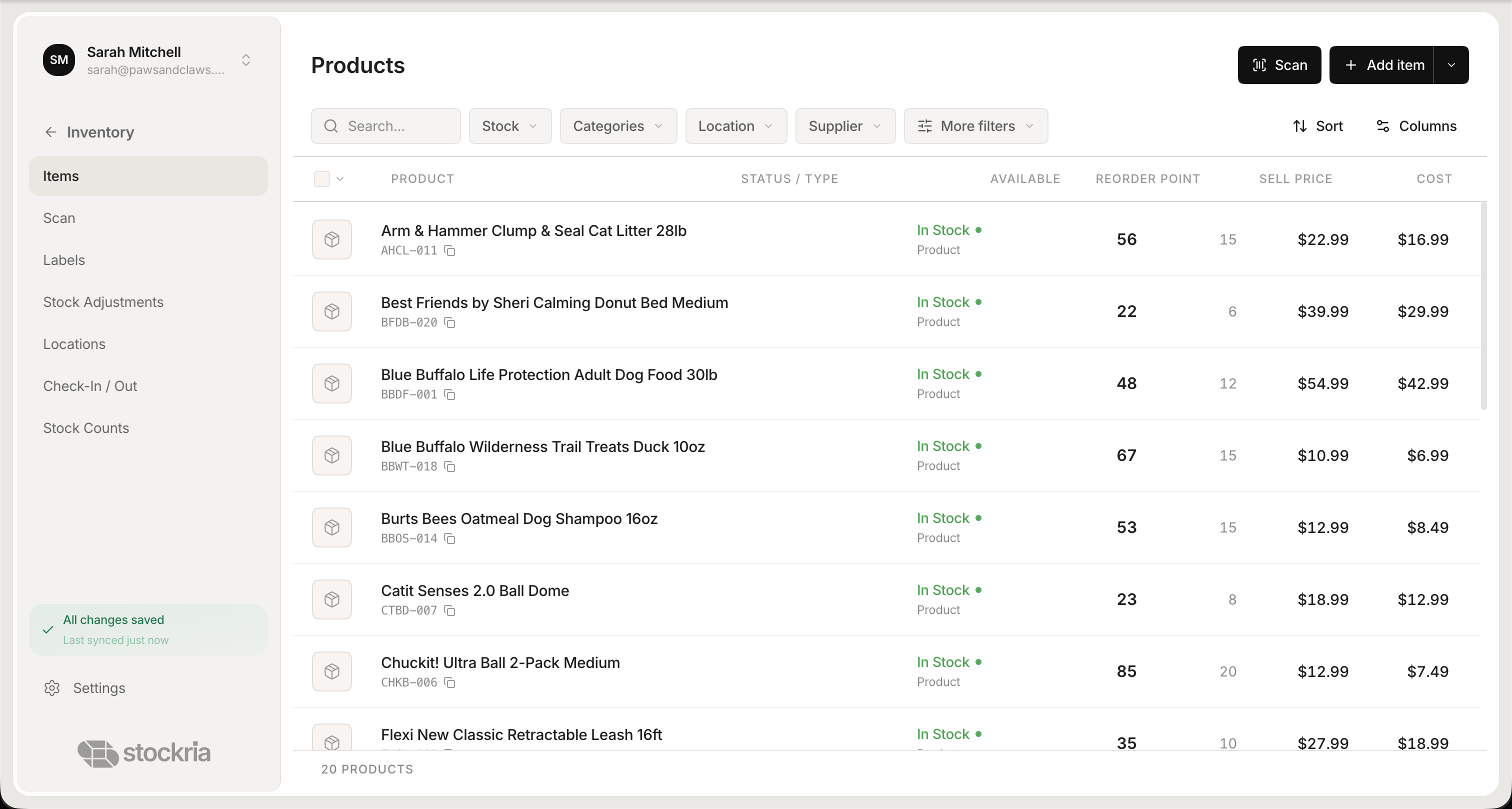 Stockria in action - Real-time stock levels across every location, updated with every scan.
Morning routine (5 minutes):
- Open the template.
- Check the Status column for any red or yellow rows.
- For yellow (Low Stock) items, place reorders if you have not already.
- For red (Out of Stock) items, check on pending orders with suppliers.
End of day (10 minutes):
- Enter the day's sales quantities in the Sold column. If you batch this from your point-of-sale system, it takes seconds.
- Enter any received shipments in the Received column.
- Record any adjustments with a note explaining why.
- Verify that Current Stock numbers look reasonable.
Weekly review (15 minutes):
- Sort by Current Stock to see your lowest-inventory items.
- Review the Status column for any items that have been yellow for more than a few days.
- Check your Stock Value total to monitor how much cash is tied up in inventory.
- Archive the current week's Sold and Received numbers and reset for the new week, or use a running tally.
Making the template work for your team
If multiple people use the template, set ground rules:
- One person updates at a time. If you use Google Sheets, this is less of an issue, but Excel files should not be open on two computers simultaneously.
- Never delete rows. If you discontinue a product, mark it as inactive instead of deleting it. This preserves your historical data.
- Do not override formulas. Lock formula cells so no one accidentally types a number into a calculated field.
- Use consistent naming. If the SKU is WG-101, everyone uses WG-101. Not wg101, not WG101, not Widget-101.
Scaling beyond the template
This template handles up to a few hundred SKUs reliably. Beyond that, or when you add a second sales channel, manual updates become the bottleneck. Inventory software automates the transaction recording that takes the most time in this template, updating stock levels with every sale and purchase automatically.