

Why Excel is a solid starting point
Excel and Google Sheets are where most small businesses begin managing inventory, and that is perfectly fine. A well-structured spreadsheet gives you visibility into your stock levels, costs, and reorder needs without spending money on software.
The key is building your spreadsheet with the right structure from the start. A poorly designed spreadsheet creates more problems than it solves.
Setting up your spreadsheet structure

Create three main tabs in your workbook:
Product Master List. This tab holds your catalog with one row per product. Columns include: SKU, Product Name, Category, Unit Cost, Selling Price, Supplier, Reorder Point, and Reorder Quantity. This tab rarely changes and serves as your reference.
Current Stock. This tab tracks real-time quantities. Columns include: SKU, Product Name, Location, Quantity on Hand, Total Value (calculated), and Status (In Stock, Low, Out of Stock). This is the tab you update most frequently.
Transaction Log. This tab records every stock movement. Columns include: Date, SKU, Transaction Type, Quantity, Reference Number, and Notes. Every sale, purchase, and adjustment gets a row here.
Link the tabs using SKU as the common key. This way, entering a SKU on the Transaction Log tab can automatically pull the product name and other details from the Product Master List.
Essential formulas to include
SUMIF for calculating current stock from transactions:
=SUMIF(TransactionLog!B:B, A2, TransactionLog!D:D)
This sums all transaction quantities for a specific SKU, giving you the current stock level based on your logged movements.
VLOOKUP for pulling product details:
=VLOOKUP(A2, ProductMaster!A:F, 3, FALSE)
This pulls information like product name or cost from your master list based on the SKU. It eliminates retyping and keeps data consistent.
Conditional formatting for low stock alerts:
Apply a rule to your Quantity on Hand column: if the quantity is less than or equal to the reorder point, highlight the cell in red. This gives you a visual warning system.
Total inventory value:
=SUMPRODUCT(QuantityOnHand, UnitCost)
This multiplies each item's quantity by its cost and sums the results, giving you the total value of your inventory.
Inventory turnover (monthly):
=CostOfGoodsSold / AverageInventoryValue
Track this monthly to see whether your inventory is moving faster or slower over time.
Making your spreadsheet more reliable
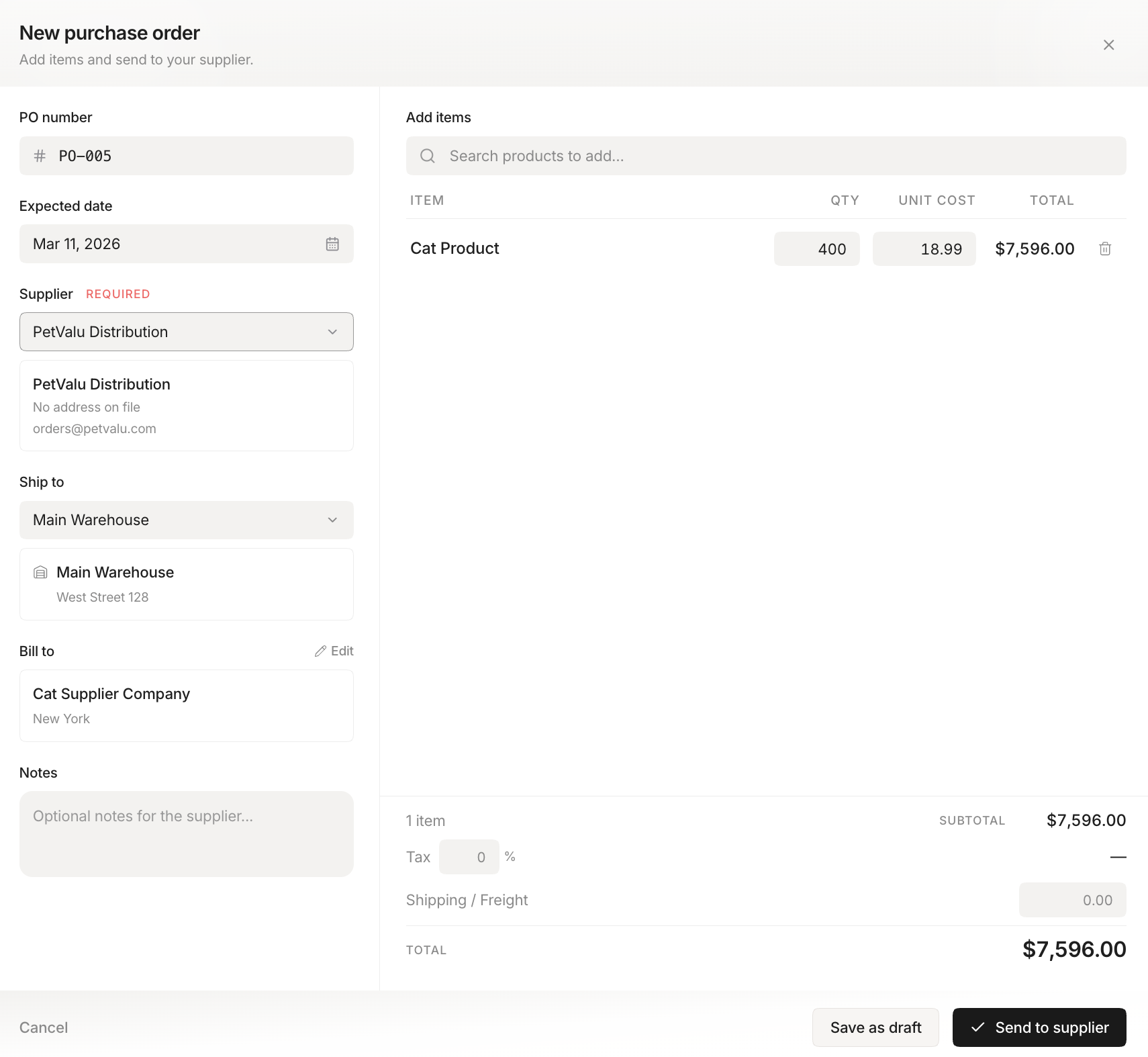 Stockria in action - Generate purchase orders from your low-stock list.
Protect formula cells. Lock cells that contain formulas so no one accidentally overwrites them with manual values.
Use data validation. Create dropdown lists for transaction types (Received, Sold, Adjusted, Returned) and categories. This prevents free-text entries that cause filtering problems.
Add a dashboard tab. Create a summary view showing total inventory value, number of items below reorder point, and top-selling products. A few well-placed charts make it easy to spot trends at a glance.
Version your file. Save a backup copy weekly with the date in the filename. Spreadsheets do not have undo history, and one bad paste can corrupt your data.
When Excel becomes a liability
Spreadsheets work well up to a point. Watch for these warning signs:
- Multiple people editing at once. Conflicting changes overwrite each other, and you lose data.
- More than 500 SKUs. The spreadsheet gets slow, formulas break, and scrolling becomes painful.
- Multi-channel sales. Updating the same spreadsheet from your website, marketplace, and store creates gaps and delays.
- Frequent errors. If your counts regularly do not match your spreadsheet, the manual update process is the problem.
- Too much time spent. If inventory management in Excel takes more than 30 minutes a day, software will pay for itself.
The transition does not have to be painful
When you are ready to move beyond Excel, the good news is that most inventory software can import directly from a spreadsheet. If your data is clean and well-structured, the switch can happen in an afternoon. The structure you built in Excel, with consistent SKUs, clean categories, and accurate quantities, makes the transition smooth.