

What is a purchase order?
A purchase order (PO) is a document you send to a supplier to request products. It specifies what you want, how much, at what price, and when you need it. The supplier fulfills the order based on this document.
POs serve as a formal agreement between you and your supplier. They create a paper trail for what was ordered, what was received, and what was paid. Without them, purchasing runs on emails, phone calls, and memory.
Why purchase orders matter for small businesses

Many small businesses skip POs and order informally. This works until it does not. Common problems without POs:
No record of what was ordered. You receive a shipment and cannot remember if you ordered 50 or 500 units. The invoice says 500, but did you actually request that many?
No way to verify deliveries. Without a PO to compare against, you accept whatever the supplier sends. Short shipments go unnoticed. You pay for items you never received.
No spending visibility. At the end of the month, you know how much you spent on inventory but not whether those purchases were planned or reactive.
The purchase order workflow
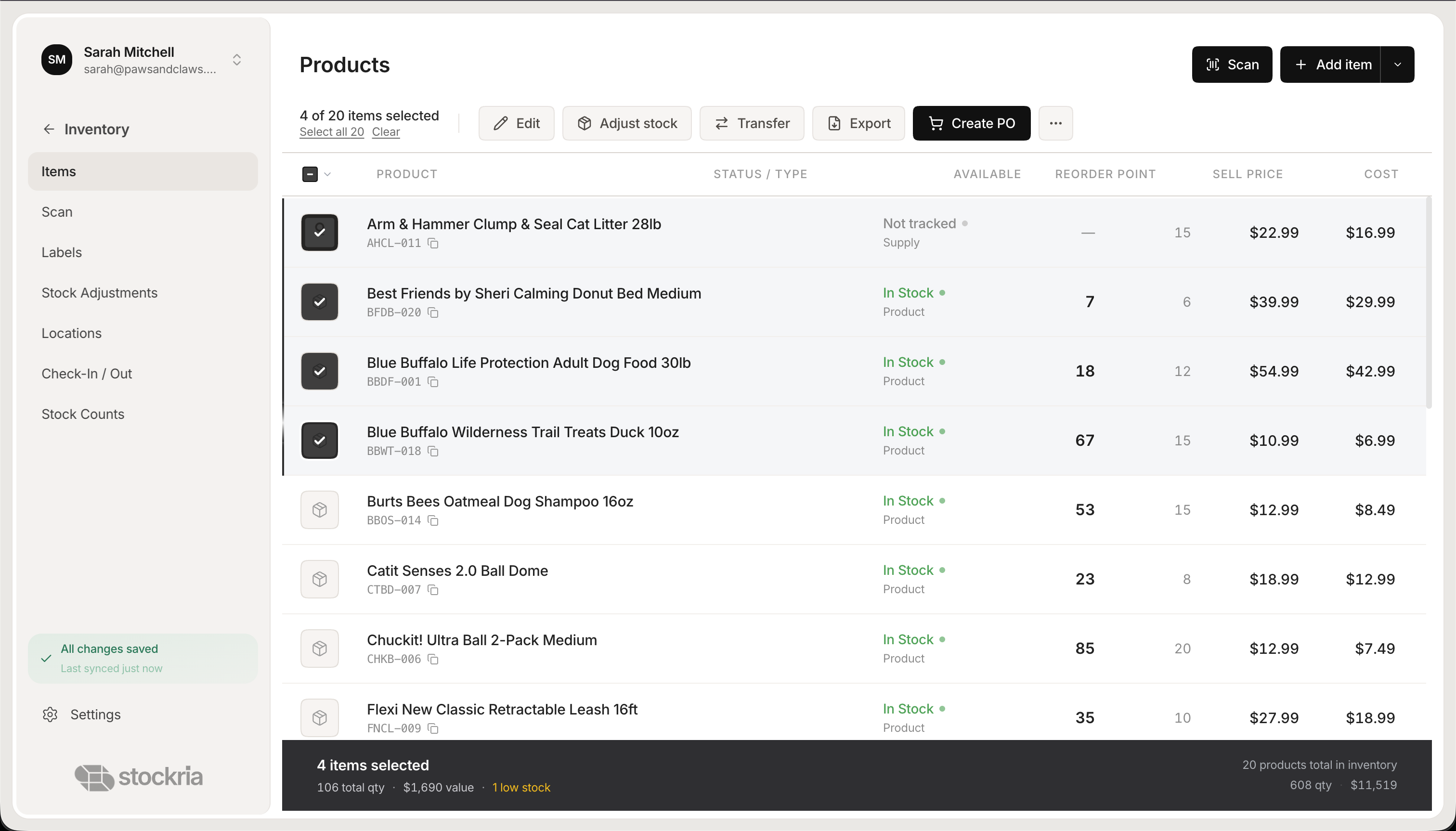 Stockria in action - Manage your entire product catalog with stock levels, pricing, and reorder points.
Step 1: Identify what to order
Review your inventory levels. Which items are at or below their reorder point? What is your expected demand for the next order cycle? Stockria flags items that need reordering automatically based on your reorder points.
Step 2: Create the purchase order
Select the supplier, add the items and quantities, confirm pricing. A good PO includes: item names and SKUs, quantities, unit prices, expected delivery date, and shipping address.
Step 3: Send to supplier
Email the PO to your supplier or submit through their ordering portal. Keep a copy. In Stockria, POs are stored and tracked automatically.
Step 4: Track order status
Mark the PO as sent. When the supplier confirms, update the status. Monitor expected delivery dates. Follow up on late orders before they become stockouts.
Step 5: Receive the shipment
When the delivery arrives, open the PO in Stockria and scan each item as you unpack it. The system matches scanned items to PO lines. If the PO says 50 units and you scan 48, the discrepancy is flagged immediately.
Step 6: Close the PO
Once everything is received (or partial receipt is documented), close the PO. Your inventory counts update automatically. The PO becomes part of your purchasing history.
Tips for a smooth PO process
Use templates for repeat orders. If you reorder the same items from the same supplier monthly, save a PO template. Duplicate it and adjust quantities as needed.
Set approval thresholds. If a PO exceeds a certain dollar amount, require a second approval. This prevents accidental large orders.
Match POs to invoices. When the supplier invoice arrives, compare it to the PO and the receiving record. Three-way matching (PO, receipt, invoice) catches pricing errors and billing for undelivered items.
Review supplier performance quarterly. Which suppliers deliver on time? Which ones regularly short-ship? This data helps you negotiate better terms or find alternative suppliers.
The difference a PO system makes
Businesses that use purchase orders consistently report fewer receiving errors, better cash flow visibility, and stronger supplier relationships. The process adds 5-10 minutes per order but saves hours of confusion downstream.
In Stockria, you can create POs directly from low-stock alerts, track them through delivery, and receive against them with barcode scanning. The entire cycle is connected.