

What is an inventory log?
An inventory log is a chronological record of every stock movement in your business. Unlike an inventory list, which shows your current quantities, a log shows the history: what changed, when it changed, why it changed, and who made the change.
Think of it as a transaction history for your inventory. When something does not add up during a count, your log tells you where to look.
Why daily logging matters

Small discrepancies compound quickly. If one unit goes unrecorded each day, you are off by 30 units in a month. That is enough to trigger a stockout on a popular item or order excess product you do not need.
Daily logging catches problems early. If a shipment arrives short, you see it in the log the same day and can contact your supplier immediately. If shrinkage is happening, patterns in the log point you to the cause.
Logs also protect you during audits and disputes. When a supplier claims they shipped 200 units but your log shows you only received 180, you have documentation to support your position.
Essential columns for your inventory log
Each entry in your log should include:
- Date. When the movement happened.
- SKU or Product Name. Which item was affected.
- Transaction Type. Received, sold, returned, adjusted, damaged, or transferred.
- Quantity. How many units moved. Use positive numbers for stock coming in and negative numbers for stock going out.
- Running Balance. The total quantity on hand after this transaction.
- Reference Number. A purchase order number, sales order number, or adjustment reason.
- Recorded By. The name or initials of the person making the entry.
- Notes. Any additional context, such as "damaged in transit" or "customer return, item resellable."
How to format your daily log
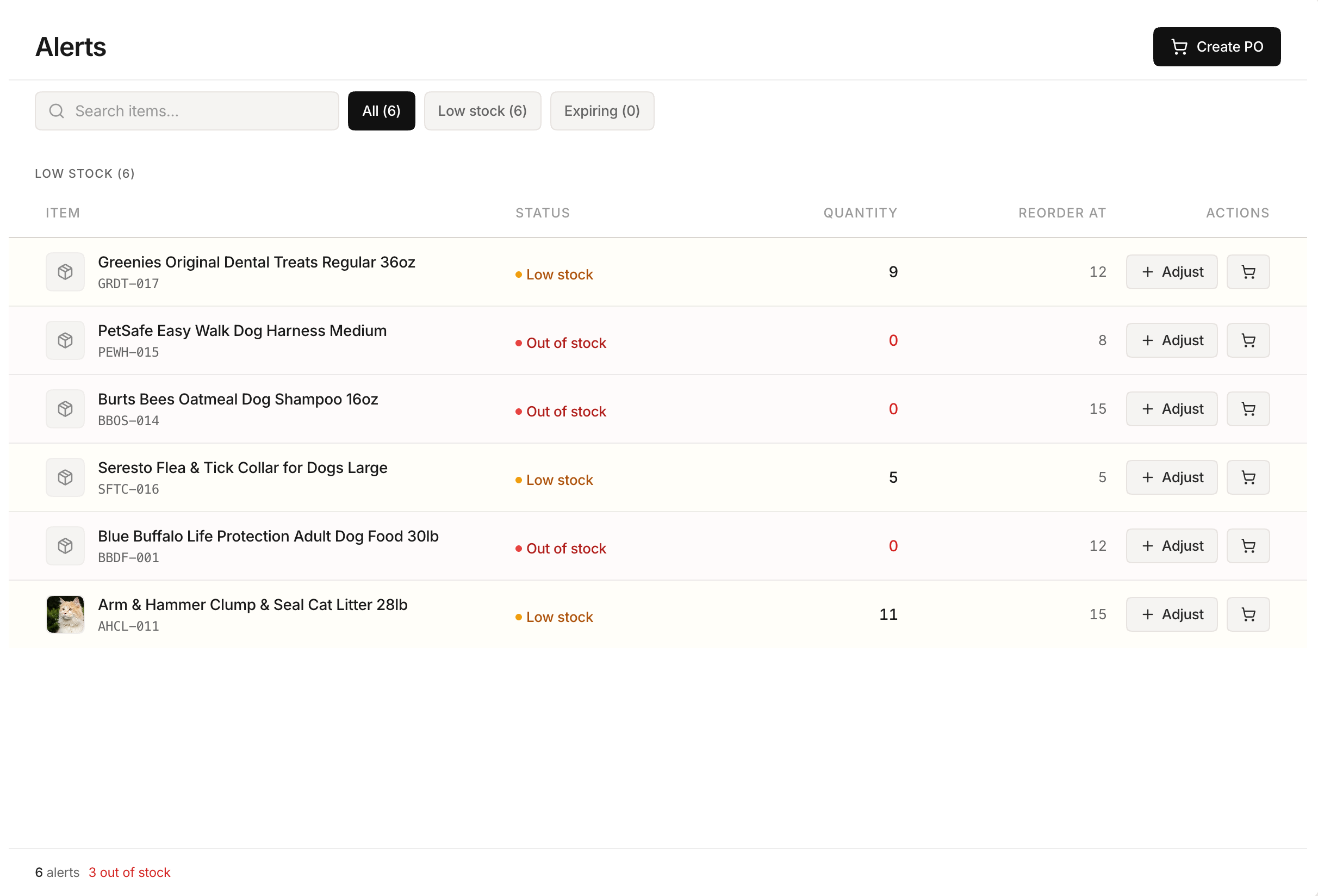 Stockria in action - Full alerts dashboard with days-until-stockout projections.
Organize your log with the most recent entries at the top. This makes it easy to review the latest activity without scrolling.
If you use a spreadsheet, create a separate tab for each month. This keeps individual sheets manageable while preserving your full history.
For each product, you should be able to filter the log and see every transaction in order. This is why consistent SKU naming matters. If the same product appears as "Widget-Blue" in one entry and "Blue Widget" in another, filtering fails.
Sample log entries
Here is what a few entries might look like:
| Date | SKU | Type | Qty | Balance | Reference | By | Notes |
|---|---|---|---|---|---|---|---|
| Jan 15 | WG-101 | Received | +50 | 120 | PO-2026-041 | MK | Shipment verified |
| Jan 15 | WG-103 | Sold | -3 | 45 | SO-8821 | JL | |
| Jan 16 | WG-101 | Adjusted | -2 | 118 | ADJ-015 | MK | Damaged on shelf |
Each entry tells a complete story: what happened, when, and why. When you investigate a discrepancy weeks later, these details save hours of guesswork.
Building the logging habit
Logging falls apart when it is treated as optional. Make it part of your daily process:
- Log received shipments immediately during the receiving process, not after putting items on shelves.
- Record sales at end of day if your point-of-sale system does not update inventory automatically.
- Enter adjustments the moment you discover them. Waiting leads to forgotten entries.
- Review yesterday's log each morning to catch anything that looks wrong.
When to automate your log
Manual logging works for businesses processing up to about 30 transactions per day. Beyond that, the time spent on data entry starts to outweigh the benefit. Inventory software generates log entries automatically from sales, purchases, and adjustments, giving you the same detailed history without the manual work.